

Keep a clear record of what happened on site
Capture the day's work, site notes, and photos while the details are fresh. Build a project history your team can return to when questions come up.
Trusted by contractors across the country







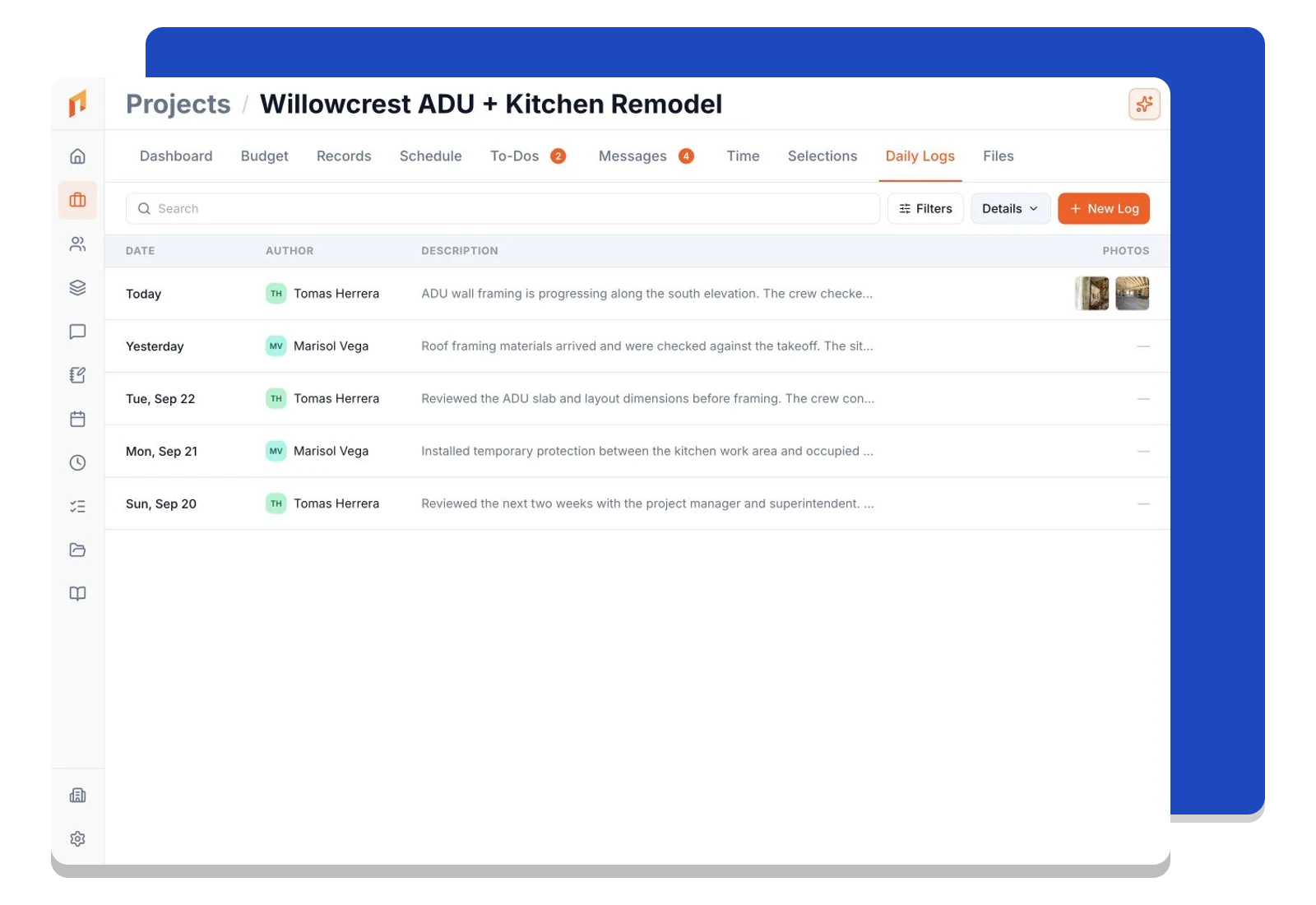
Find the update from the day you need
Keep dated entries together in the project. Scan the log list for a recent update, or search across projects when you need to trace what happened and when.
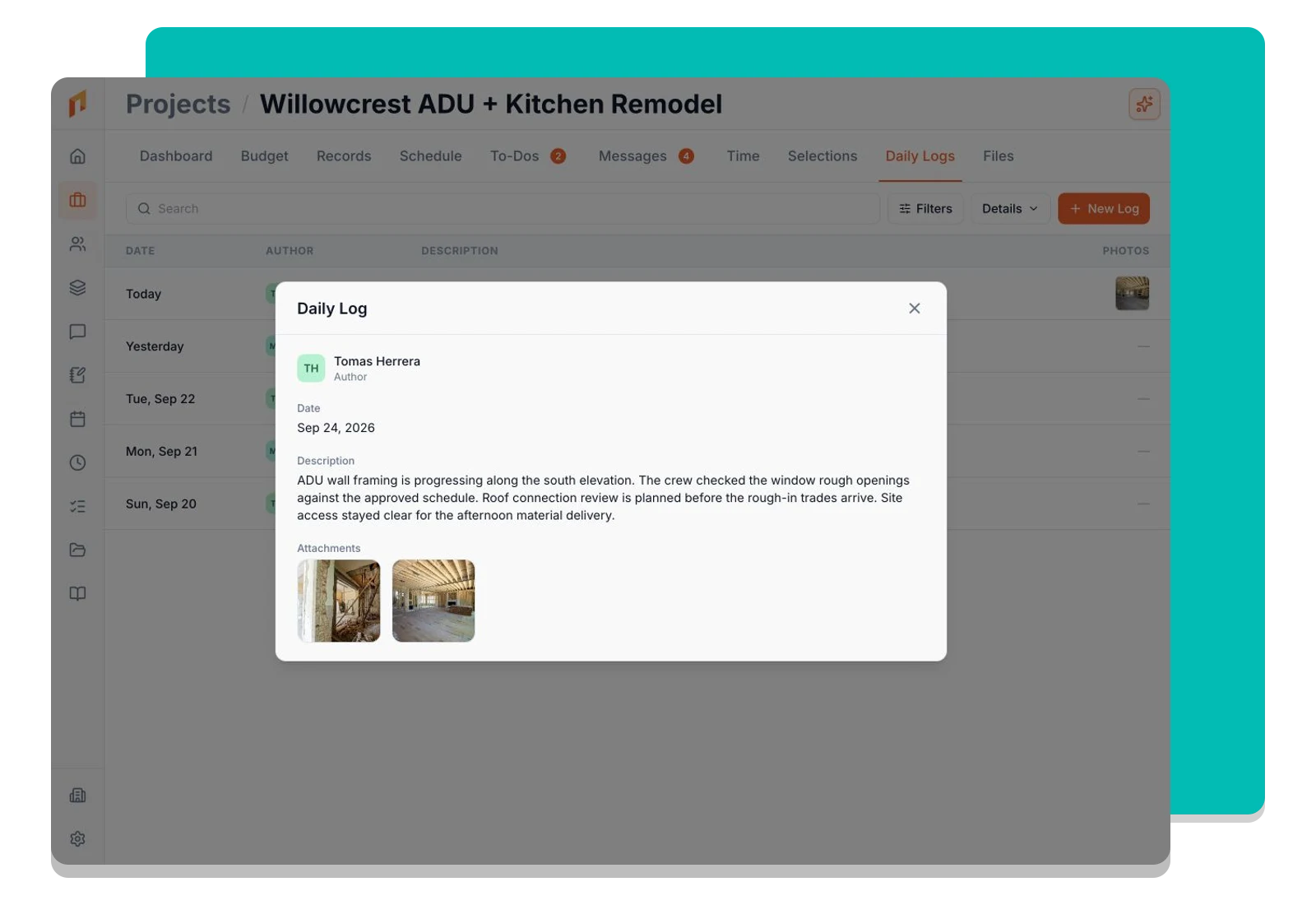
Show the progress as well as describing it
Add notes and attach photos or files to the same entry. Open a log later to see the written context alongside the images from that day.
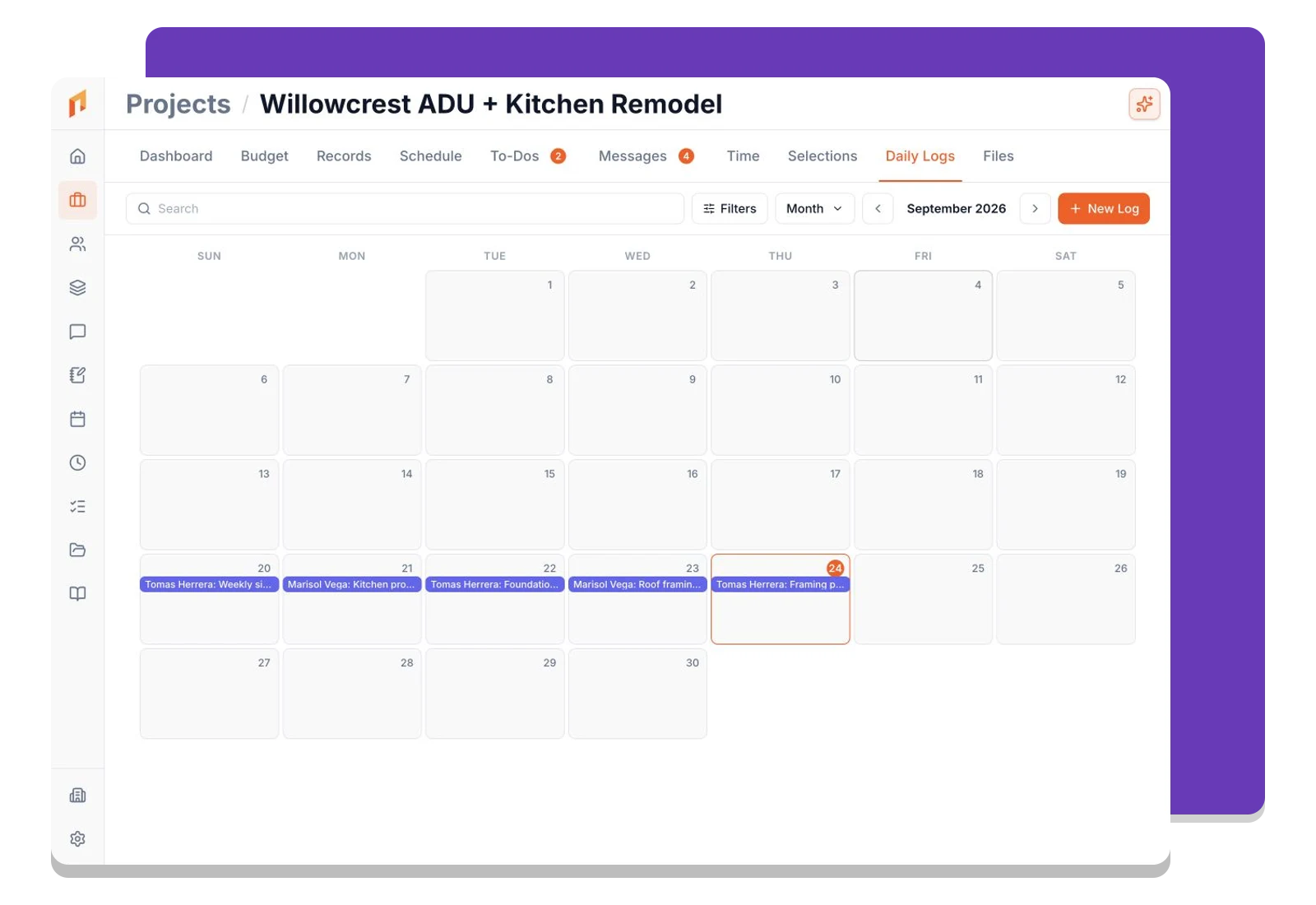
Go back through the project day by day
Switch between the details list and a month or week calendar. Open an entry from its date to review the work without digging through a camera roll or separate notes.
Frequently asked questions
Contractors run their business on Foreman
Real crews, real projects, real results.
“Kind of obsessed with this honestly. Uploaded plans, had the bid out same afternoon, client signed it online that night. This is how it's supposed to work.”
“They are the real deal, and have helped automate most of our roofing business, highly recommend for midsized crews.”
“One of the best software investments we've made for our business. The organization, estimating, and takeoff tools have significantly improved our efficiency and streamlined our workflow.”
One system for the whole project
The estimate, the schedule, the field and the books in one place.
Run the Project
Get started today
Join contractors who’ve put away the spreadsheets and sticky notes.


