

Keep project finances connected to your books
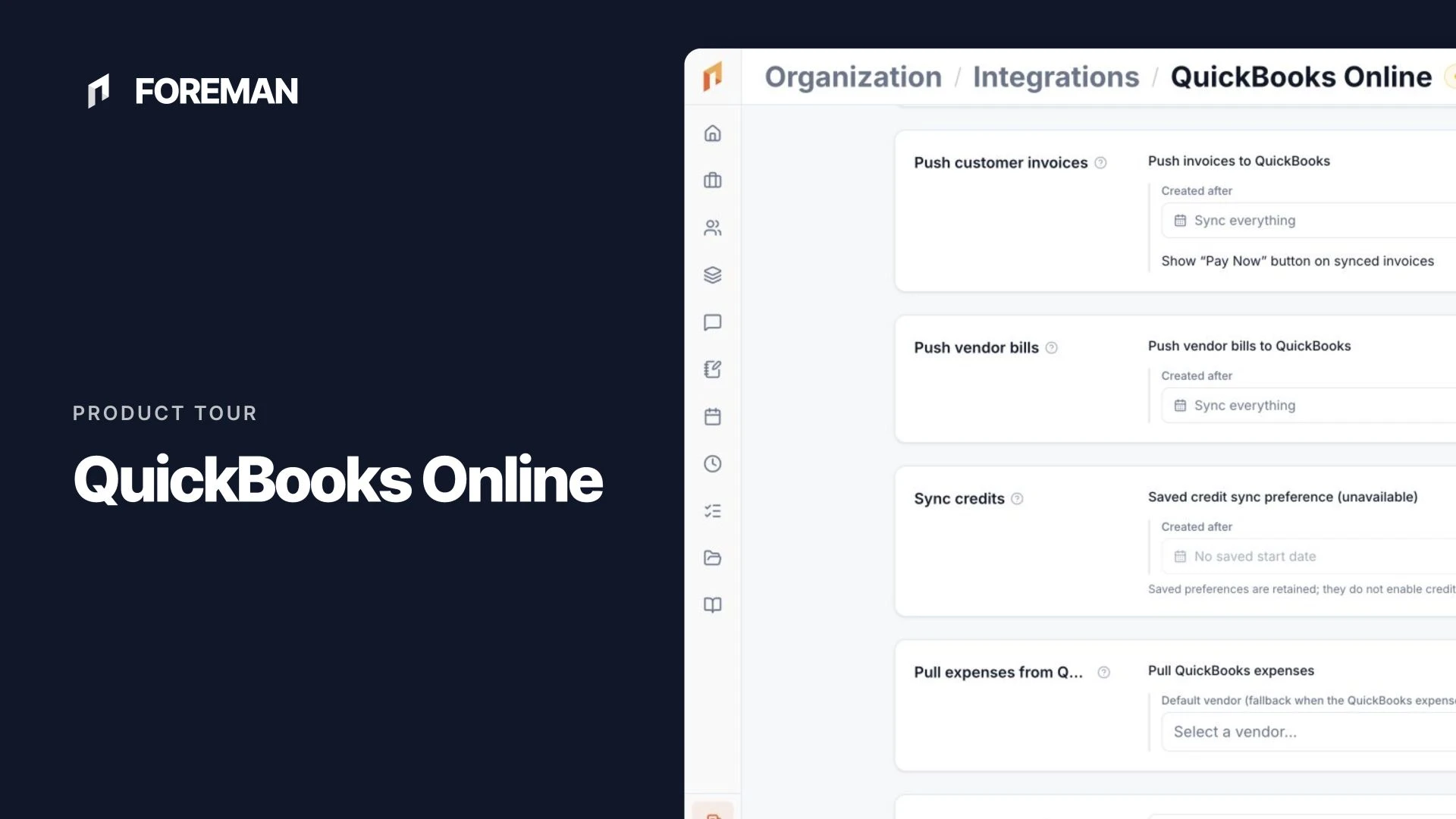
Connect Foreman to QuickBooks Online to move supported invoices, vendor costs, and payments between your project workflow and accounting. Choose the sync directions, starting dates, and mappings that fit your business.
Trusted by contractors across the country





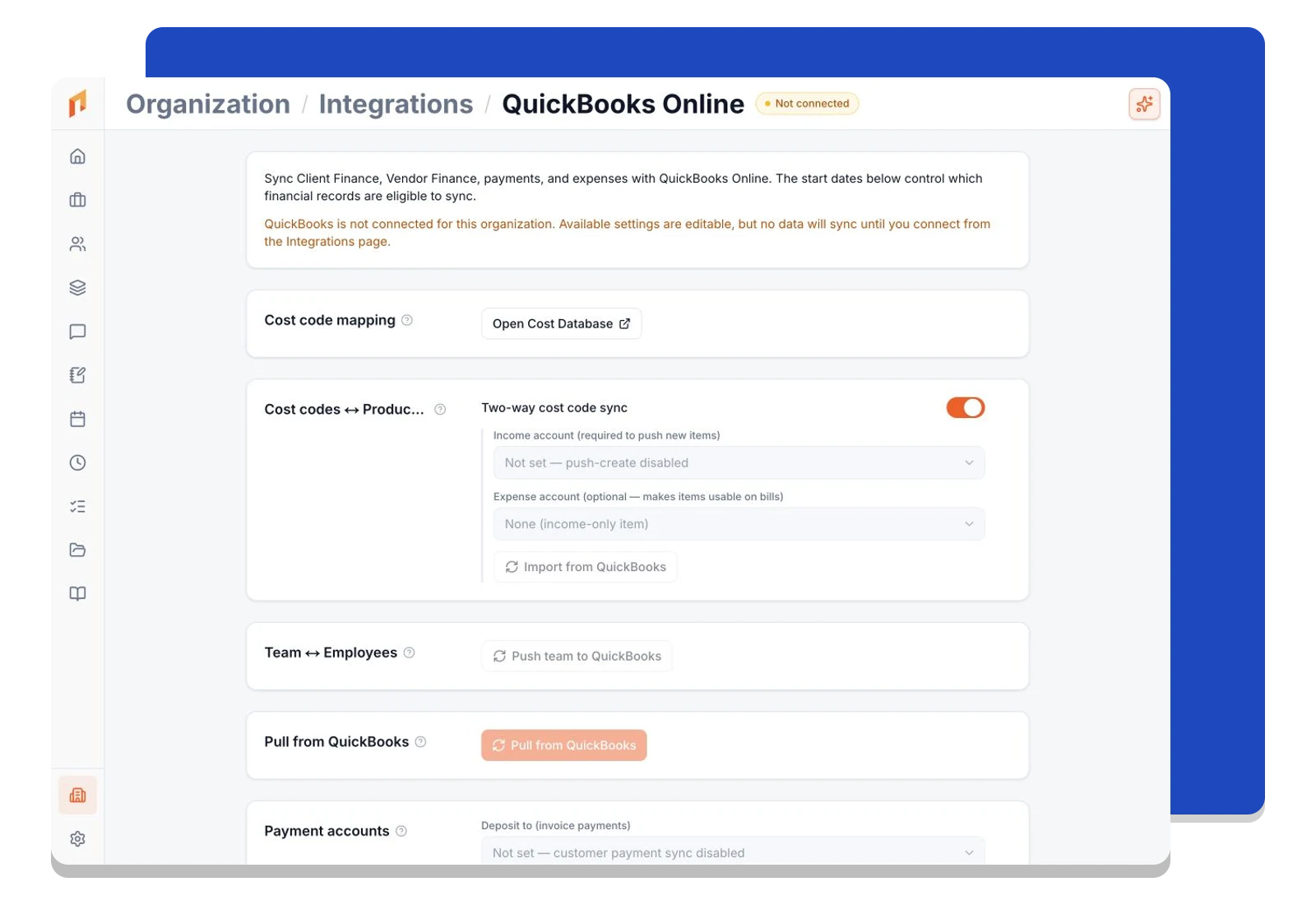
Connect the work to your accounting setup
Manage the QuickBooks connection from Foreman and link your cost codes to Products and Services. Your project team keeps working in Foreman while your accounting setup provides the categories behind the numbers.
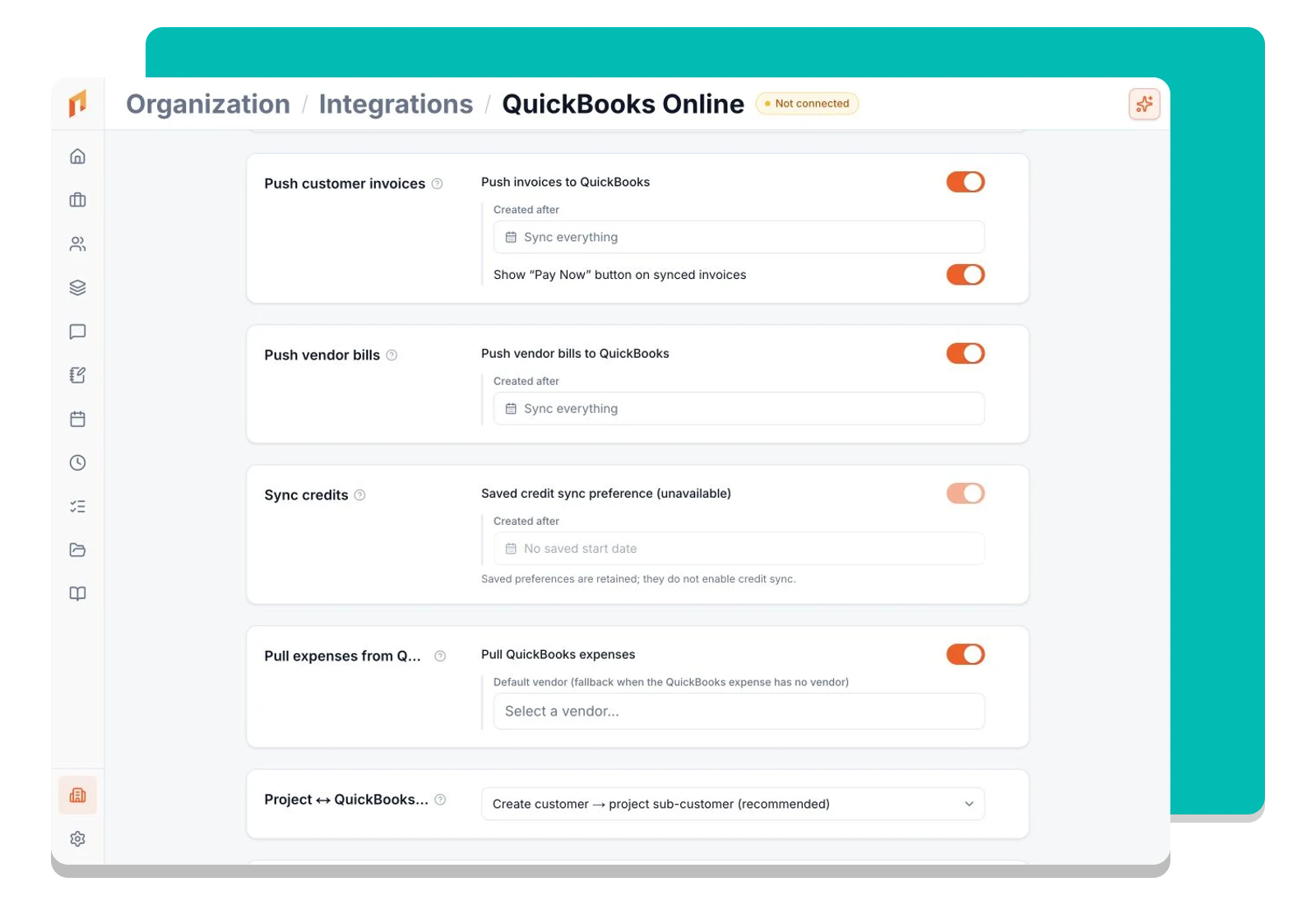
Choose what moves and when it starts
Enable supported outbound and inbound flows separately. Send eligible invoices and vendor costs to QuickBooks, bring new bills and expenses into Foreman, and set start dates so older records stay outside the sync unless you choose otherwise.
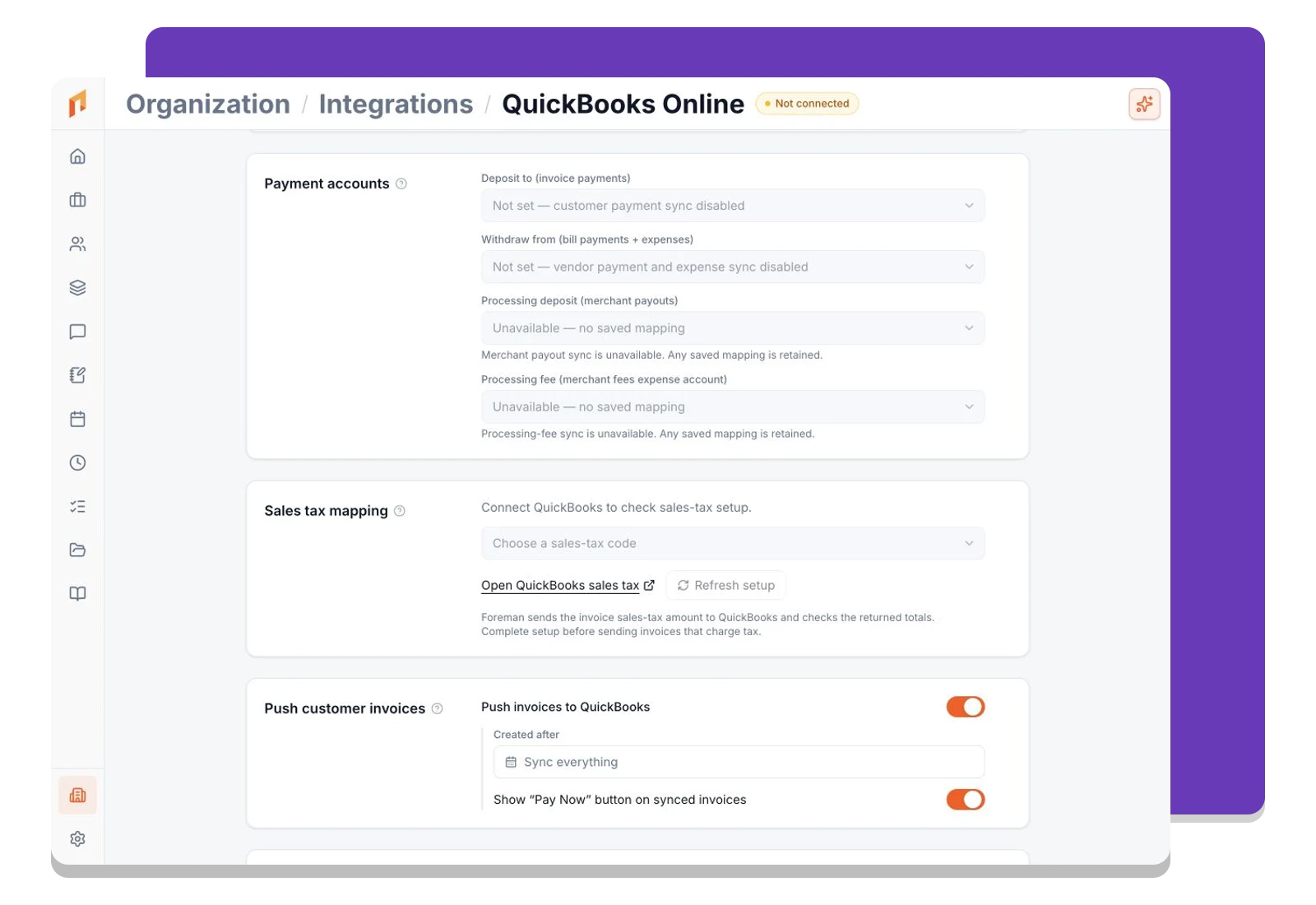
Give payments a clear destination
Set the accounts used for customer deposits and vendor payments, along with your project mapping preferences. Keep these choices in one place so the integration follows the accounting structure your team uses.
Frequently asked questions
Contractors run their business on Foreman
Real crews, real projects, real results.
“Kind of obsessed with this honestly. Uploaded plans, had the bid out same afternoon, client signed it online that night. This is how it's supposed to work.”
“They are the real deal, and have helped automate most of our roofing business, highly recommend for midsized crews.”
“One of the best software investments we've made for our business. The organization, estimating, and takeoff tools have significantly improved our efficiency and streamlined our workflow.”
One system for the whole project
The estimate, the schedule, the field and the books in one place.
Run the Project
Get Paid
- Client Finances
- Change Orders
- Purchase Orders
- Vendor Finances
- Time Tracking
- QuickBooks SyncThis page
Get started today
Join contractors who’ve put away the spreadsheets and sticky notes.


